
These instructions will enable you to connect a computer (or more than one if you add a switch in) with an ethernet port, but no wireless, to a wifi hotspot via the use of a mini wireless router as this diagram demonstrates:
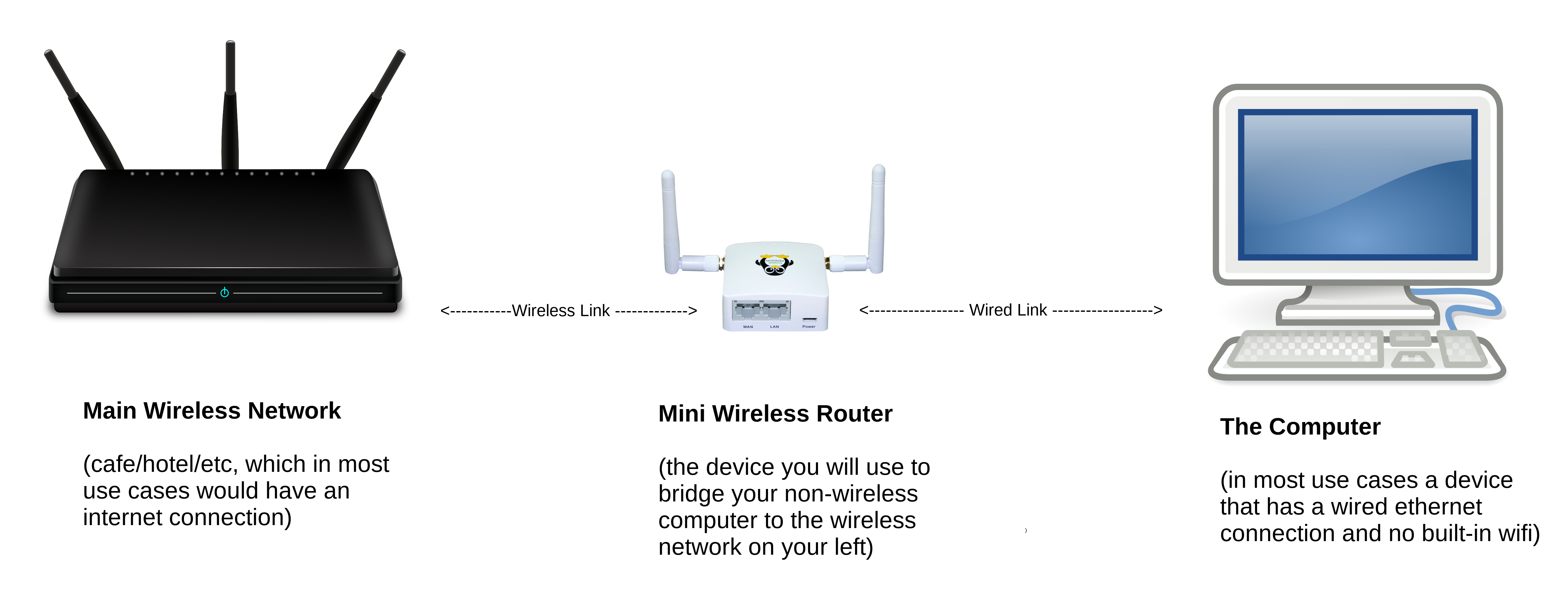
Do not connect an ethernet cable to the WAN port. The directions have been verified to work with 6.x releases of libreCMC, but the last release that was tested officially was libreCMC 6.7 on a TPE-R1300 mini wireless router. If you have any questions or think an update is needed contact support. If you've received a router that has already been configured with these directions below there is a simpler set of directions on how to utilize the bridge.
There is also a video demonstration of these directions now available (note: the video is for 1.5.x, but is largely the same for 6.x).
Directions
0. Connect the power cable to the router (this is a micro usb cable that plugs into a type-A USB port on a computer or a USB power adapter that then connect to a wall socket)
1. Connect an ethernet cable from your computer's ethernet port to the LAN port on the mini wireless router that you want to use as an ethernet to wifi bridge
Note: If the computer you are connecting from has wireless turn the wireless off from the network applet
2. Open a web browser and go to https://192.168.10.1
3. Click Advanced and Accept Risk and Continue links/buttons
4. Login
Note: There is no default password set for a non-VPN configured libreCMC router, thus you can just click the Login button to login
5. Go to Network > Interfaces and click the Edit button that is next to the LAN network
6. In the IPv4 address box change 192.168.10.1 to 192.168.8.1
Informational: This above step is to ensure you have a different IP set for your router than typically used by most wireless routers on the market that you might want to connect to. If your upstream router/modem's IP is the same it'll conflict and the bridge will be problematic or not work at all.
7a. Click the Save & Apply button at the bottom of the page
7b. Click Apply and keep settings when prompted with Connectivity change message
7c. Wait for the Configuration has been rolled back! error message to appear and then click the Apply anyway button
7d. Wait for the Device unreachable! message before continuing to step 8
8. On your computer disconnect from and reconnect your Wired network
9. Open a web browser and go to https://192.168.8.1
10. Click Advanced and Accept Risk and Proceed links/buttons
11. Login (again, there is no default password, unless of course you set one already)
12. Go to Network > Wireless
13. Next to the libreCMC SSID click the Remove button; then click the Save & Apply button
14. Next to where it says Generic MAC80211 802.11bgn (radio0) click the Scan button
15. Click the Join Network button for the wireless network you are attempting to bridge to
16. Enter a wpa passphrase if it is required to connect to the network you are attempting to bridge to
17. Click the Submit button
18. Click the Save button, then click the Save & Apply button at the bottom of the page
19. Go to System > Administration and enter a password in the Password and Confirmation boxes
20. Click Save button at the bottom of the page, then the Dismiss button
21. Go to Network > Wireless and you should see a connection under Associated Stations... if not connected give it a minute to connect.
22. Then you can verify it is fully connected and is getting an IP by going to Network > Interfaces. You will find an IPv4 address next to where it says wwan & phy0-sta0.
From your computers network applet click the wired connection to disconnect and then again to reconnect.
At this point you should be able to open a browser and surf the internet.