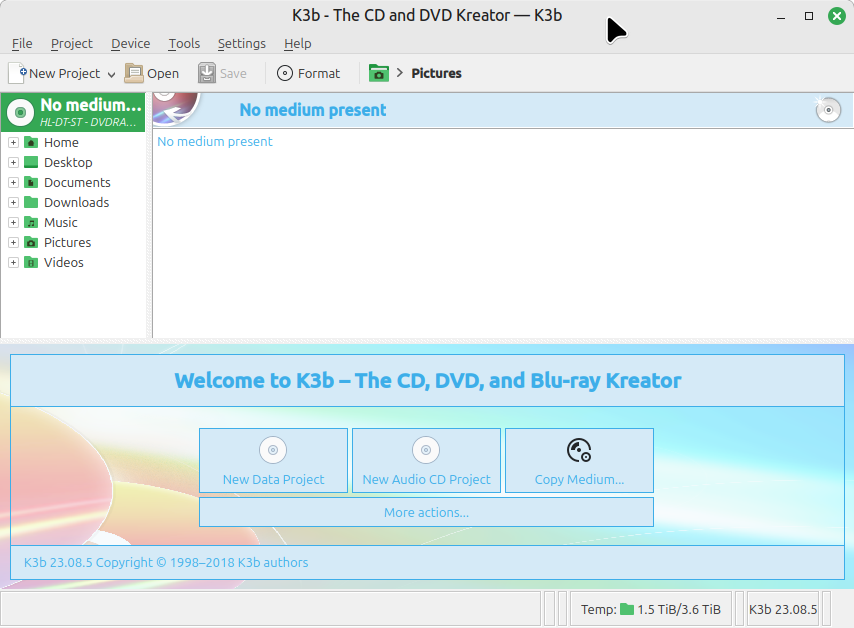
If your looking to burn a CD/DVD/Blu-ray disc on Linux Mint or another GNU/Linux distribution there are a number of different applications available to do so. One of these is K3b. K3b is one of the more popular full featured applications and via plug-ins is quite capable. Follow the instructions below to install K3b.
Note: These directions were written up under Linux Mint 22 in 2026, but it's going to be similar with newer and older releases of Linux Mint, and for that matter other distributions like Trisquel. If you need further assistance or otherwise think the directions may need updating please contact support.
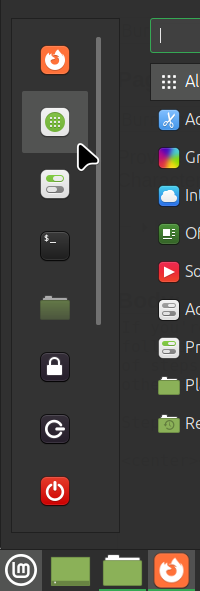
Step 1: Find your Software Center/Software Manager from the system menu (usually in the lower or upper left corner):
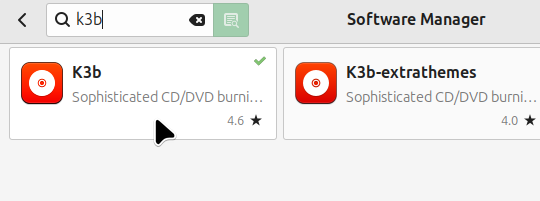
Step 2: Search for and click on the resulting k3b icon labeled K3b like so:
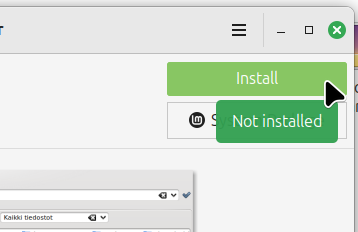
Step 3: Click on the install button to install K3b:
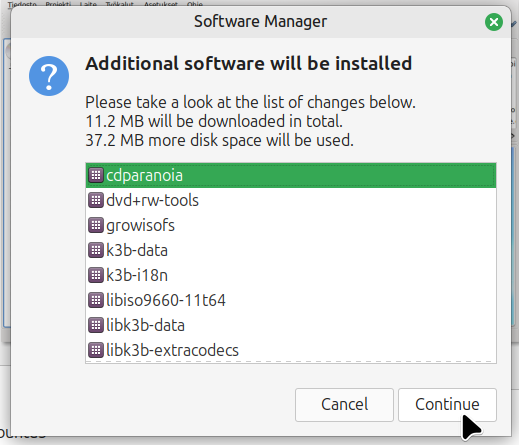
Step 4: You will be prompted with a messaging saying Additional software will be installed, click the Continue button:
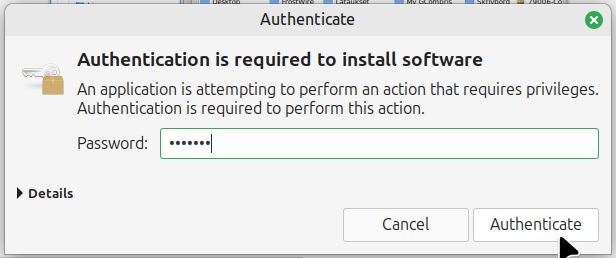
Step 5: You will be prompted with a message asking for your password, enter it as shown below (this is the password you use to login to the computer):
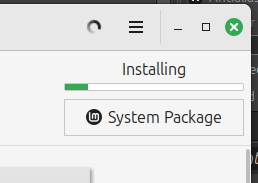
You will then see that k3b is being installed:
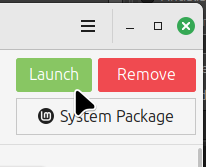
Step 6: When the installation is complete click the launch button that appears:
K3b is now installed and open (in the future you can find k3b in the Sound & Video section via the system menu in the lower left corner):