
This documentation is specific to Pop!_OS 24.04, though should work similarly for future releases and will be similar to many other distributions. If you need updated documentation Pop!_OS and can't find it in our list of documentation please contact support.
For printing:
1. Go to the Applications menu in the top left corner
2. In the search box enter printers and click the Printers app icon when it appears
3. Click the Add button
4. Click Network Printer on the left side
5. Select Canon MF260, preferably the one showing the IP, and NOT the one showing UFRII LT
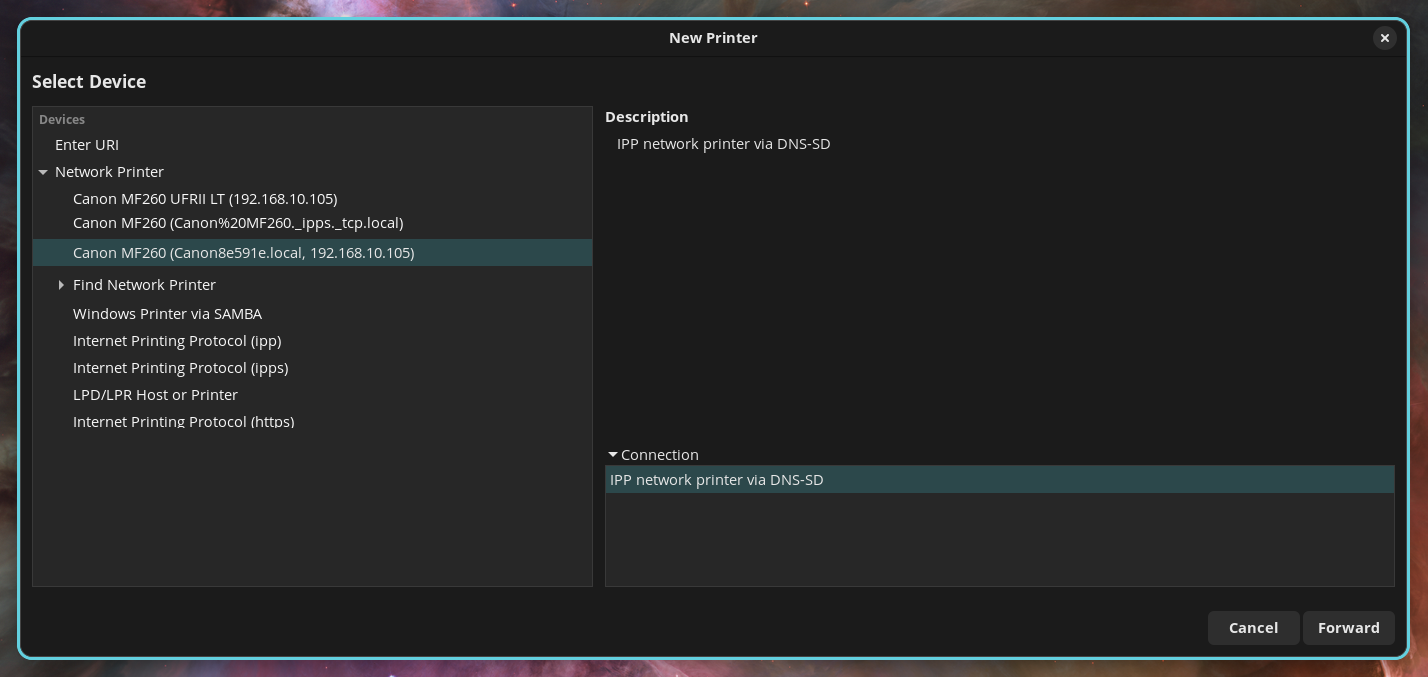
6. Click the Forward button
7. Click the Forward button again
8. Click the Apply button
9. When it asks Would you like to print a test page? Select Print Test Page
10. You'll get a message Submitted Test page submitted as job 1
11. It'll print a test page that has Printer test page and Ubuntu's logo on it; your done setting up the printer
12. Click the OK button
13. Click the OK button again
14. Click the X in the top right to exit out of the Printers window
15. You will also want to set the 'media size' to letter from A4:
a. Go to the Applications menu in the top left corner
b. In the search box enter printers and click the Printers app icon when it appears
b. Right click on the printer and go to properties, then under printer options select 'US Letter' from the Media drop down box, then the OK button
For scanning:
1. Make sure your computer is connected to the same network as the printer
2. Go to the Applications menu in the top left corner
3. In the search box enter document scanner and click the Document Scanner app icon when it appears in the search results
4. Select eSCL Canon MF260 from the drop down
5. In the top left corner of the window click the Scan button; the document will appear if you have one in the flatbed of the scanner
6. Click the down arrow button to save the document as a file
7. Click the Save button
8. You can click the X button in the top right corner of the window to exit the scanning app