
Unfortunately Trezor the company behind the Trezor T and Trezor Safe 5 has released its Trezor Suite app under a non-free license. The included directions instruct the user to setup and initialize the device using this software. The problem with this is it is non-free and puts the user at risk.
The good news is that the firmware for these devices are released under a set of free software licenses and the hardware can be initialized using free software. The trick is understanding how to go about using the free software to do so, but that's where we come in. We have written up directions on using these devices with with various wallets directly on free and more free software oriented distributions as well as some not-as-free distributions.
On Fedora 44 there is one free software friendly wallet we can recommend using with the Trezor Safe 5. It is the Electrum Bitcoin Wallet for Bitcoin transactions.
While this documentation has been verified under Fedora 44 it's likely to work on future releases as well. Contact support if you think it may need an update.
Initializing a Trezor Safe 5 on initial purchase using Fedora 44
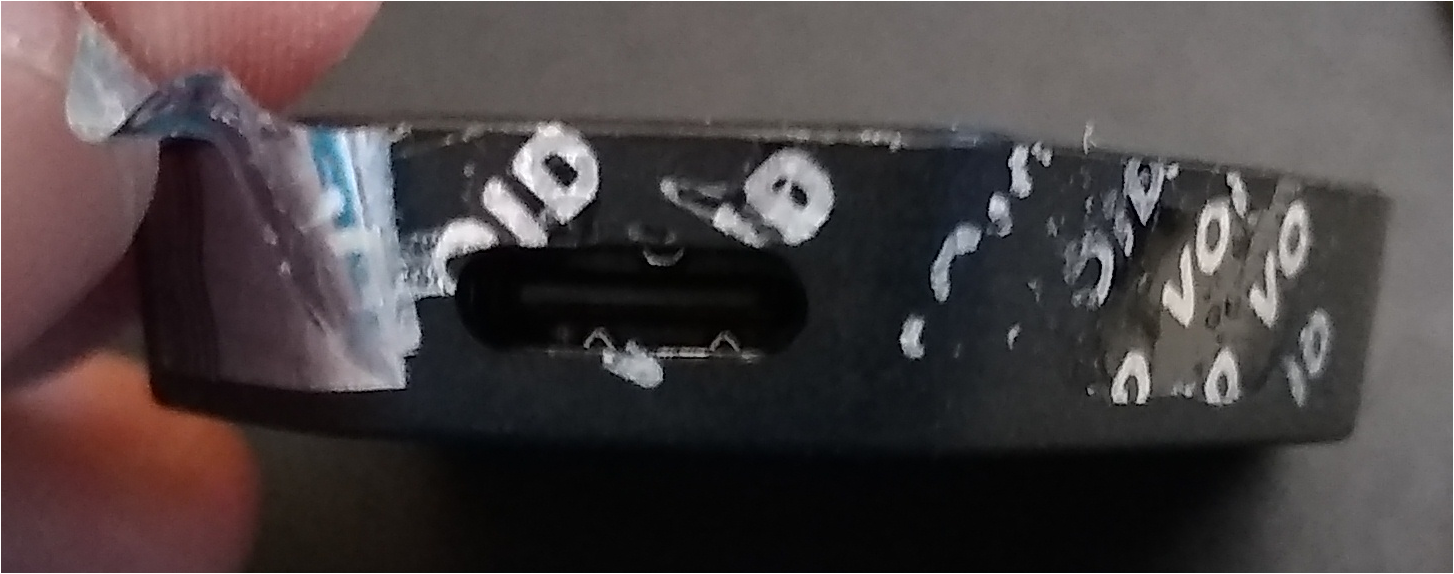
0. Remove the protective screen cover and peel off the tamper evident security seal from the Trezor Safe 5:
1. Connect the included USB-C cable to the Trezor Safe 5 and the other end to a computer with a USB-C port.
2. Identify the latest Trezor Safe 5 firmware by visiting the official github page:
https://github.com/trezor/data/tree/master/firmware/t3t1
Note: These are the files listed in the following format: trezor-t3t1-*.*.*.bin where the highest number is the latest release, and you can also utilize the date as a basis for figuring out what the most recent version is.
3. In the top left corner click on the Activities Overview button
4. In the search box type type in terminal and open the Terminal app
5. Download the latest Safe 5 firmware by running the following commands, but replace 2.12.1 with the latest version of the firmware identified in the step above:
wget https://github.com/trezor/data/raw/refs/heads/master/firmware/t3t1/trezo...
Note: You can type in wget and then copy the link by right clicking the link and selecting Copy Link.
6. Install the Trezor initialization software by running the following command:
sudo dnf install python3-pip
pip3 install --user --upgrade trezor
7. Run the following command and confirm that the computer detects the device:
trezorctl list
You should get the following indicating it is in bootloader mode and ready to flash:
webusb:001:3 - Trezor Safe 5 bootloader
8. Flash the firmware, but replace 2.12.1 with the version of the firmware identified in prior commands:
sudo trezorctl firmware-update -f ./trezor-t3t1-2.12.1.bin
9. Now that the firmware is flashed it's time to initialize the device by running the following command:
trezorctl device setup --strength 256 --passphrase-protection --pin-protection --label "My Trezor Safe" --backup-type single

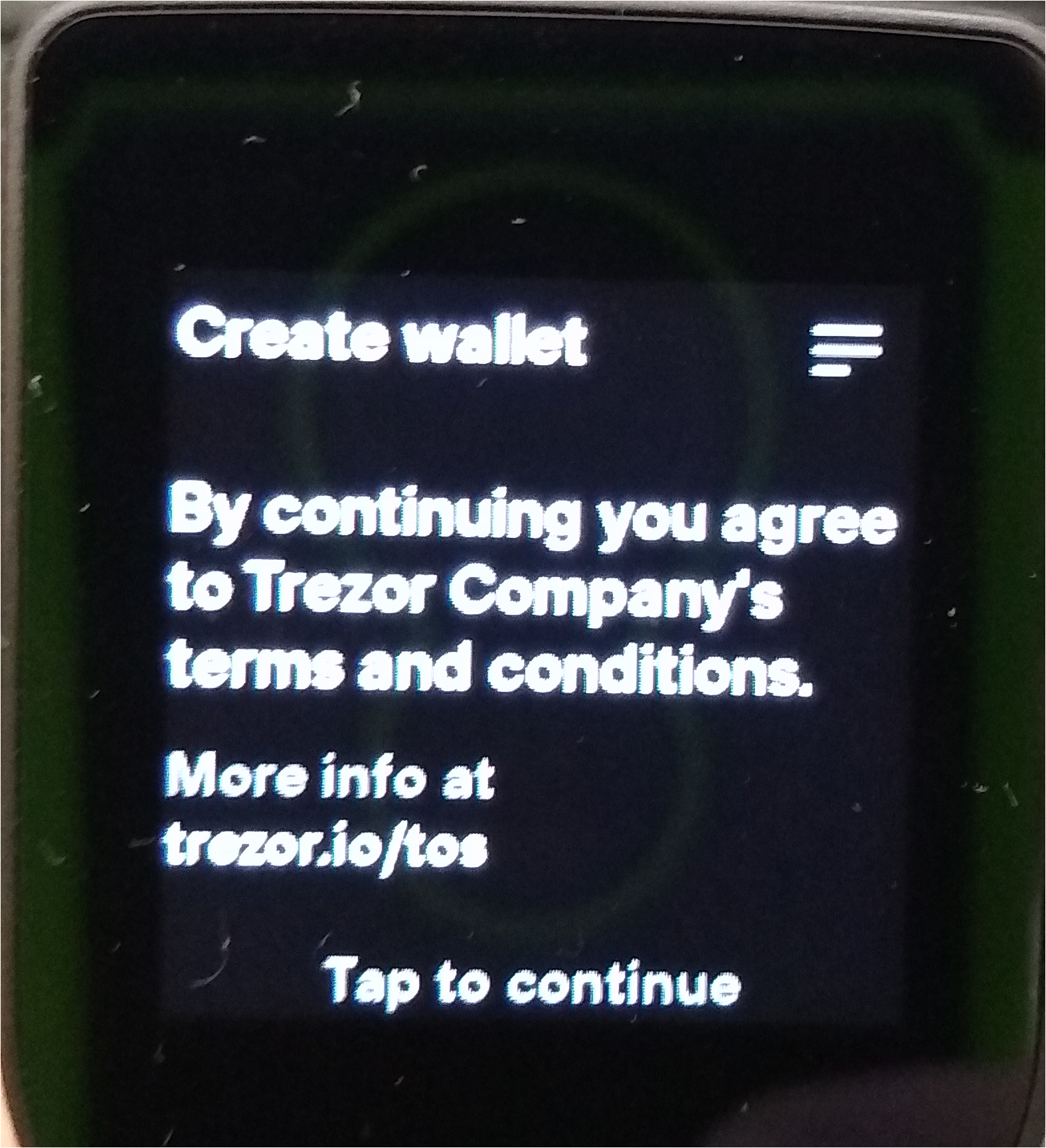
10. Tap the screen on the Trezor Safe 5 to agree to the TOS (terms of service).
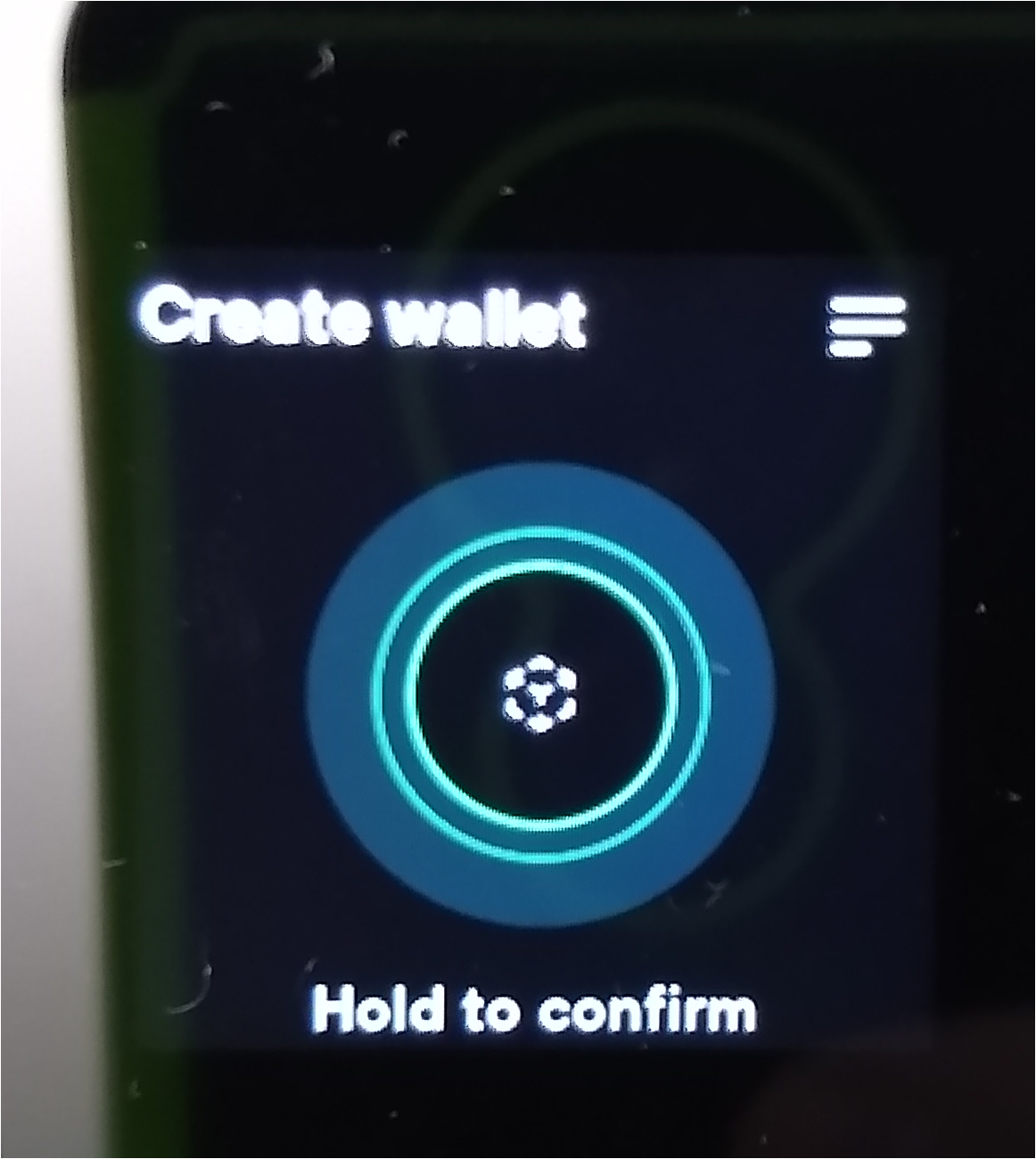
11. On the Trezor Safe 5 screen follow the instruction and press and hold to confirm initialization.
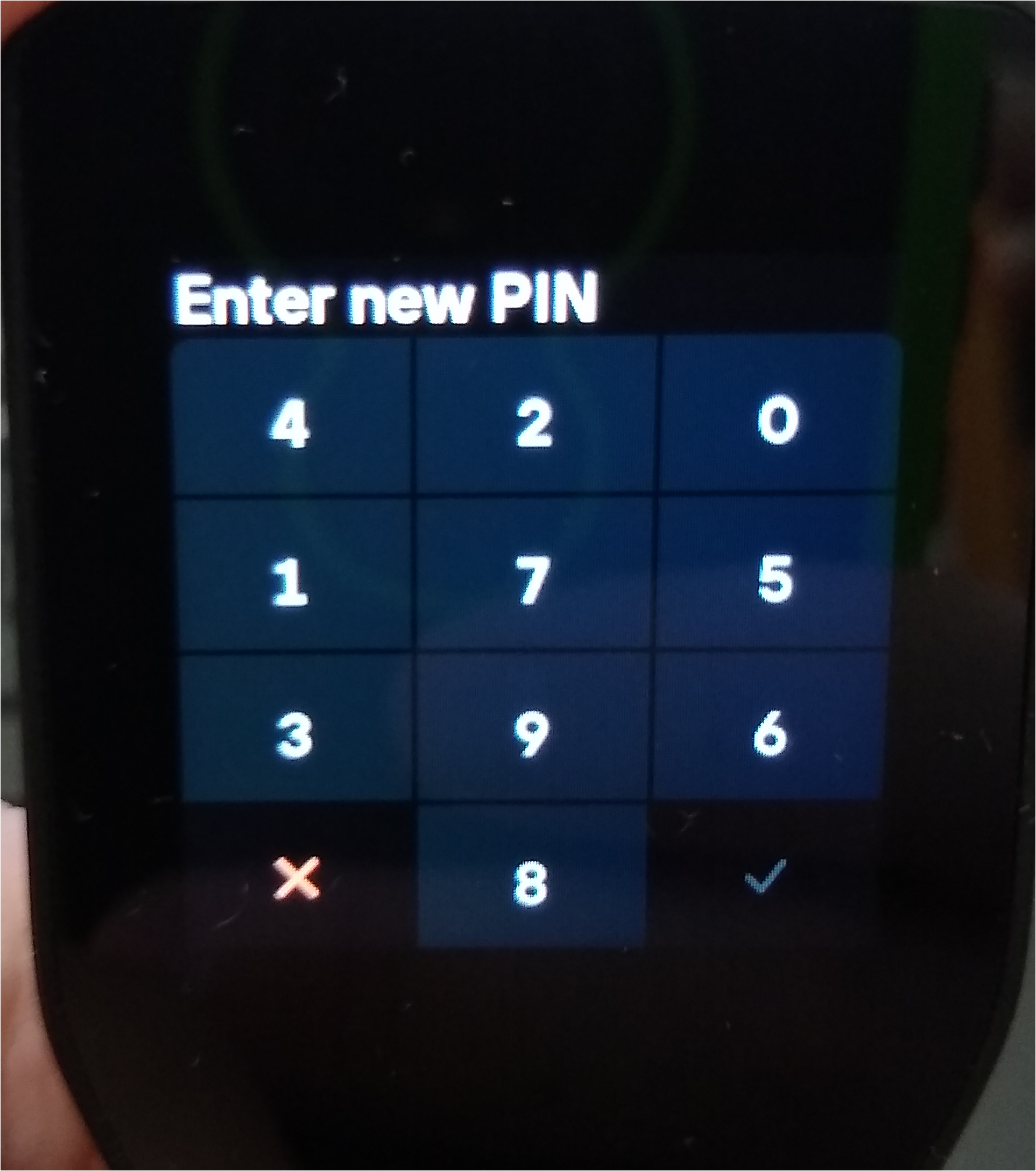
12. On the Trezor Safe 5 screen enter a pin to protect the Trezor Safe 5 against unauthorized use (and make a note of it so you don't forget it).
13. On the Trezor Safe 5 screen you should see a message indicating your wallet has been created and to tap the screen to continue. Do so.
14. On the Trezor Safe 5 screen you'll next see a create wallet backup message. Tap to continue with the backup.
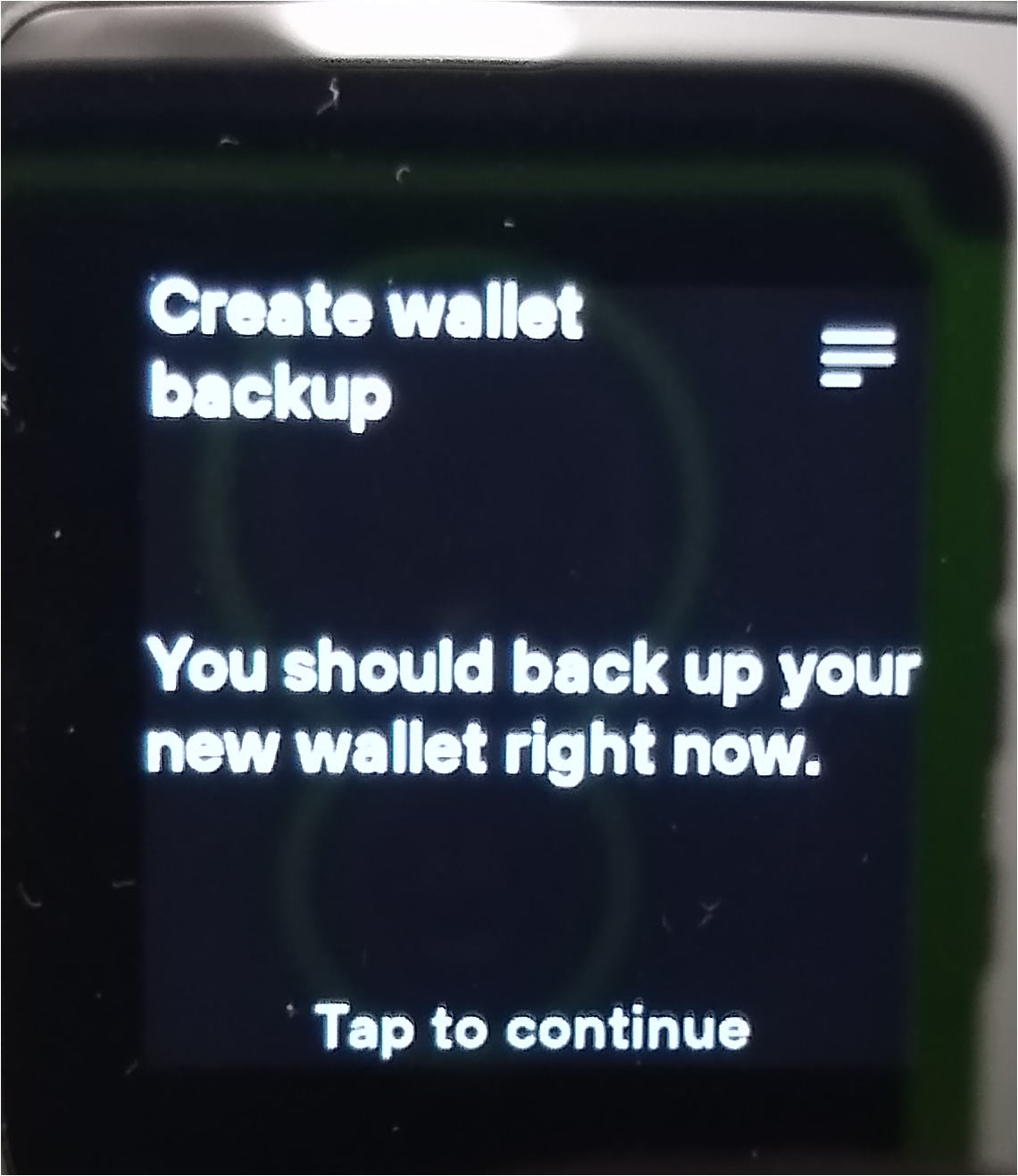
Note: You'll also see another 'create wallet backup' screen indicating that the 'wallet backup contains 33 words in a specific order'. Tap the screen to continue.
15. On the Trezor Safe 5 screen you'll see 'never put your backup anywhere digital'. Tap to continue
16. On the Trezor Safe 5 screen when you see the wallet backup instructions follow the directions as described and write your backup words down. Then tap the screen to continue after each word. You should see a 'I wrote down all 33 words in order.' when the process is complete and a hold to confirm, and you should put your finger on the screen, and hold it there until the 'check wallet backup' message appears.
17. When you see the wallet backup message tap the Trezor Safe 5 screen to continue.
18. Select the word from the list you wrote down until you've gone through each of the ones prompted for and see the success screen. Then tap to continue.
At this point you've successfully flashed and initialized your Trezor Safe 5 using free software.
Installing Electrum Bitcoin Wallet on Fedora Workstation 44:
1. In the top left corner click on the Activities Overview button
2. In the search box type type in terminal and open the Terminal app
3. Copy and paste the following line into the terminal and hit enter to install the needed trezor software
sudo dnf install python3-pip electrum
pip3 install --user --upgrade trezor
4. On the computer log out and log back in
5. Connect the Trezor Safe 5 via the USB-C cable to the computer
6. Tap the Trezor Safe 5 screen to connect
7. Enter your pin on the Trezor Safe 5 and then tap the green check mark to unlock it
8. In the top left corner click on the Activities Overview button
9. In the search box type type in electrum and open the Electrum app
10. Click the Next button once the Electrum Bitcoin Wallet app opens
11. It'll ask you where you want to store the wallet data, the default should be OK, click the Next button to continue
12. On the Create new wallet screen the default Standard wallet is OK, leave it and click the Next button
13. On the Keystore screen select Use a hardware device and click the Next button
14. You should see your Trezor Safe device as an option and selected, click the Next button to continue
15. On the Script type and Derivation path screen you can use the default native segwit (p2wpkh) option and click the Next button
16. The next screen alerts you to check your Trezor device to continue
17. On the Trezor Safe 5 screen enter your pin and tap the green check mark as requested by the Electrum Bitcoin Wallet software
18. Back in Electrum Bitcoin Wallet it'll ask you to create a password, click the Enter Passphrase on Device button
19. Back on the Trezor Safe 5 screen enter a passphrase you'd like to use and tap the green check mark to continue
20. Back in Electrum Bitcoin Wallet you'll be asked to encrypt the wallet file, the default is to do so, click the Finish button
Factory reset the Trezor Safe 5
1. Disconnect the Trezor Safe 5 from your computer.
2. Swipe Up: Place your finger at the bottom of the touchscreen and swipe upwards to the top.
3. Connect: While holding the swipe (or immediately after swiping up), connect the USB cable to your computer.
4. Bootloader Menu: The device will display a Bootloader screen. Tap the menu icon (or the screen if prompted) to access the bootloader options.
5. Select Factory Reset: Choose Factory Reset from the list.
6. Confirm: Press RESET and follow the on-screen instructions to wipe the device.