In either event there is a work around to the problem and that is to install the firmware yourself. It is however a little bit more complicated as Canonical does not include all the packages in Ubuntu in its Ubuntu Software Center. This means you have to do something technical to install it. You have to open a terminal and run a command. The directions to install the package are as follows below. If you are unable to connect the system to the internet temporarily via an ethernet cable contact support to obtain a copy of the firmware via snail mail.
1. Temporarily connect an ethernet cable to the system and the other end to a router. Then check in the top right corner of the screen to make sure you have a network connection, as this is required to install the missing package from the Ubuntu repository. The icon looks like three little computers forming a network with cables in-between them.
2. Step to go to the "activities" button in the top left corner of the desktop and click it.

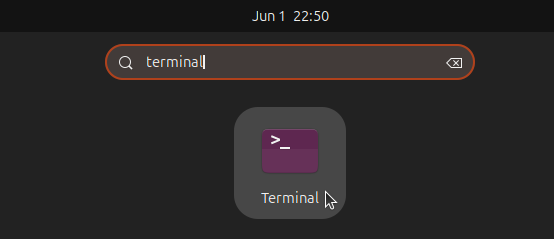
3. This will bring up a search box as shown in the picture, type terminal into the search box and click on the terminal icon when it appears to open the terminal:
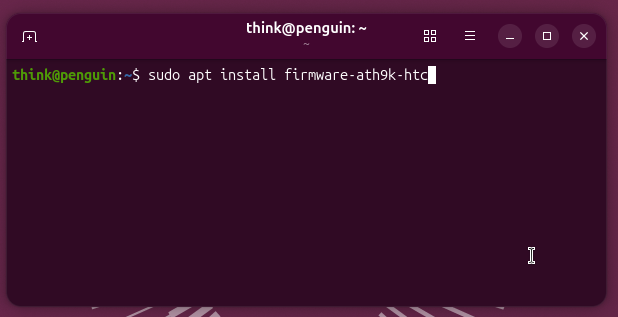
4. When the terminal opens type in sudo apt install firmware-ath9k-htc as shown in the picture below, then hit the enter key:
5. It'll prompt for your login password, type it in, and then hit the enter key as shown in the picture below:
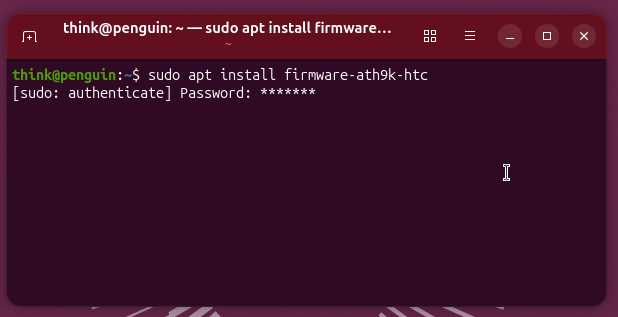
6. If all goes well this is what you'll see appear on the terminal:
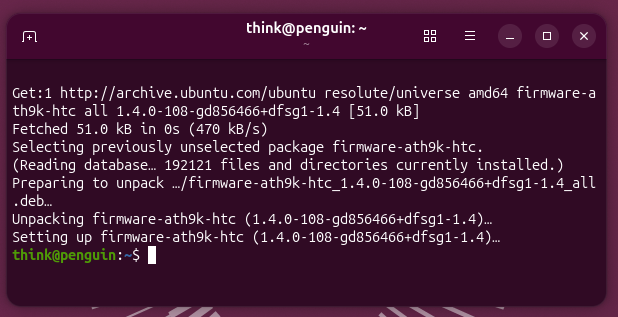
7. Now that the firmware is installed you can connect your USB wifi adapter and if you already had it connected unplug the wifi adapter from the USB port and plug it back in. This is essential as it causes the kernel to initialize the wifi adapter such that it'll work. Then in the top right hand corner where the speaker is click the button as shown below:
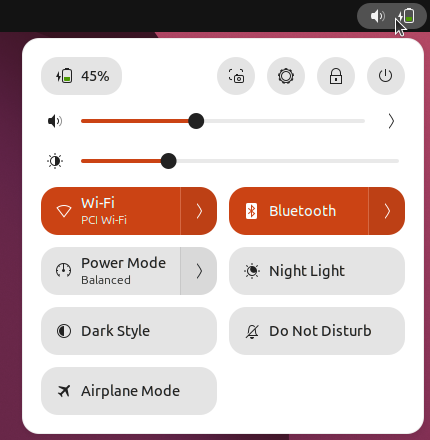
8. You'll see a button for wifi, click on it as shown below:
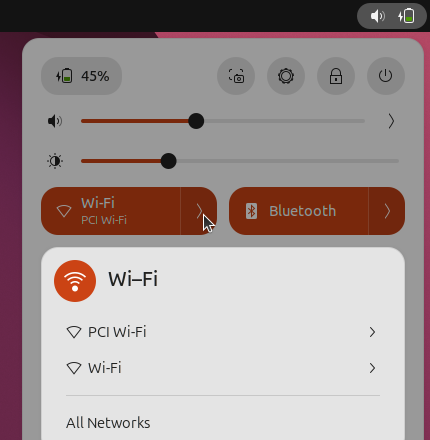
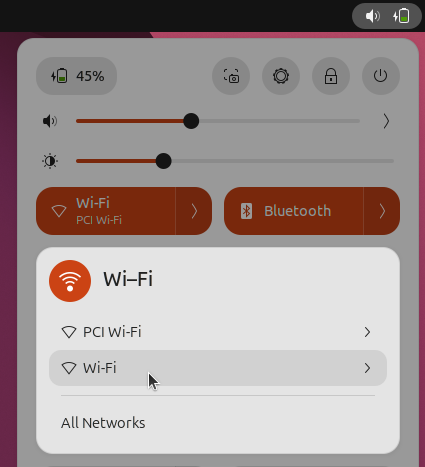
9. If you see multiple wifi adapters/cards select the one that that does not say PCI to utilize your USB wifi adapter as shown below (most likely there will not be multiple wifi adapters/cards however):
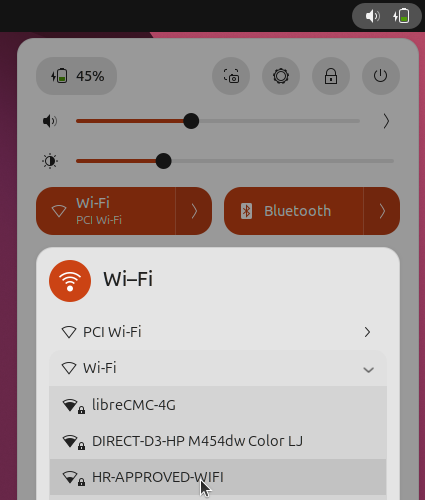
10. Click on your access point as shown in the picture below (except, you'll need to click on the access point you want to connect to, not HR-APPROVED-WIFI):
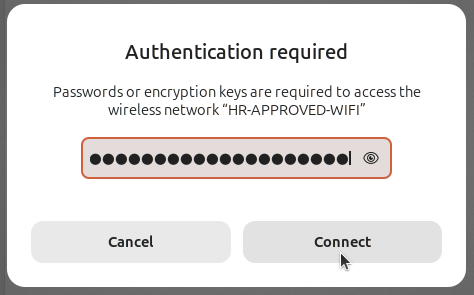
11. Enter the password for your wifi network if you have one set and are prompted for it as shown in the picture below: