
The directions below are applicable to using the TPE-F4500 USB fingerprint reader on Kubuntu 26.04 and enrolling your finger using Kubuntu 26.04 System Settings user login utility. You can find our documentation for older Kubuntu releases here. Further down there is also documentation on getting the fingerprint reader working at the system login.
1. Plug in the USB fingerprint reader
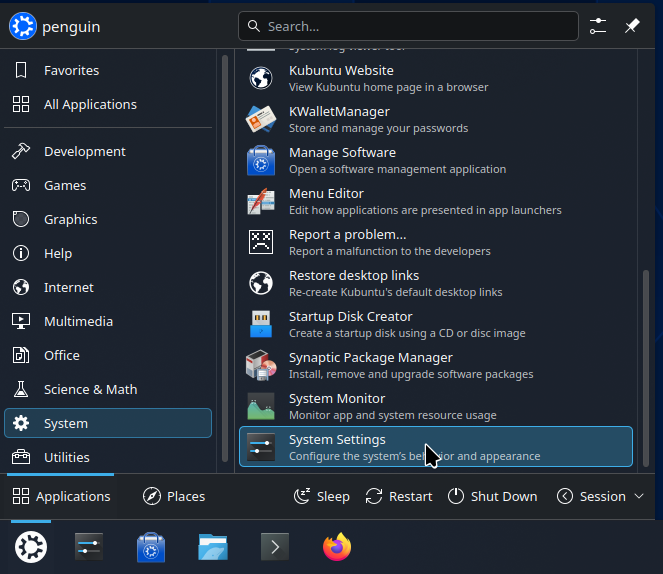
2. From the KDE menu in the lower left corner go to System > System Settings
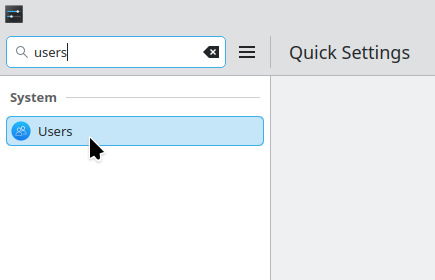
3. On the left hand side of System Settings find and click on the Users tab
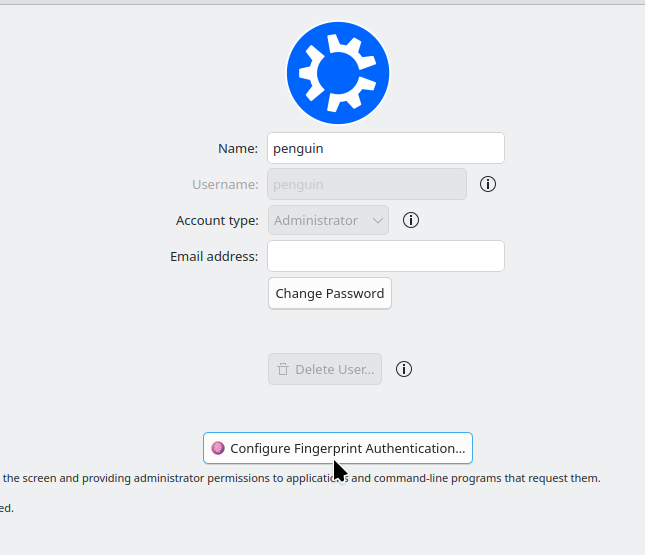
4. Click the Configure Fingerprint Authentication button...
5. Click on the Add button
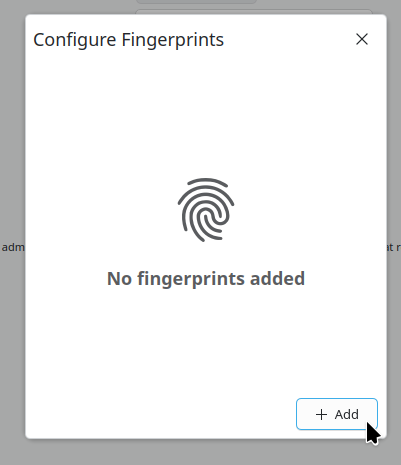
6.Select a finger to enroll
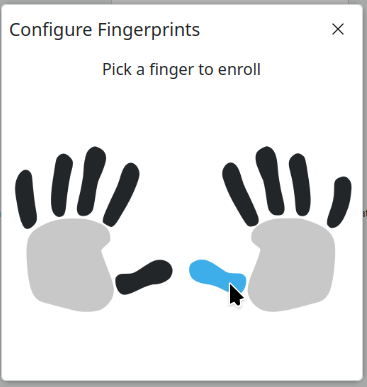
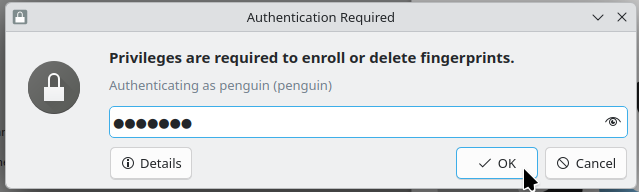
7. It'll prompt you for your login password, enter it and click OK
8. Press your finger firmly against the sensor and do not let up until after the fingerprint reader blinks, repeatly do this until the screen says Finger Enrolled
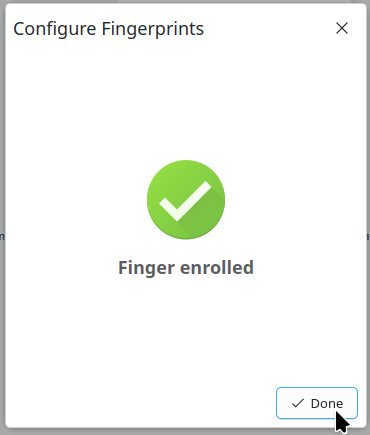
9. Click the Done button
10. Click the X on the window to exit
11. Go to the KDE menu in the lower left corner, click the menu button, then the Session button, and then the Lock button
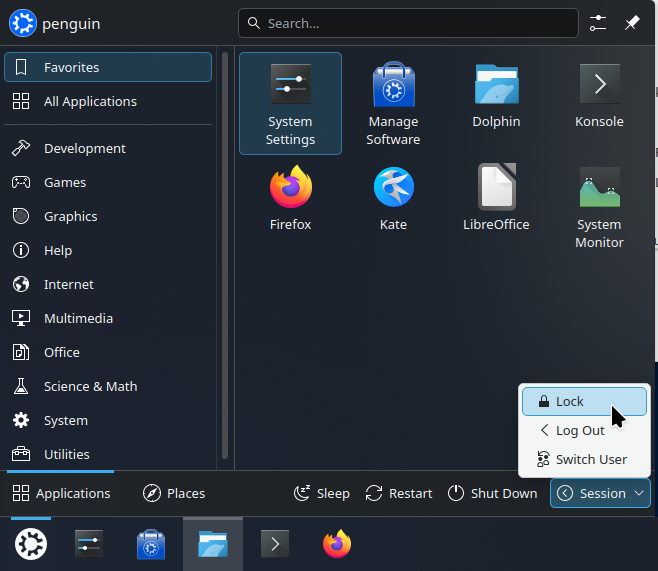
12. You can now move your mouse and the fingerprint reader will light up, press your finger against the sensor and it'll unlock the system without requiring a password
Additional configuration required to use the fingerprint reader prior to logging in:
To use the fingerprint reader on boot at the Kubuntu login screen you will need to make some configuration changes to the system. Kubuntu does not support fingerprint reading out of the box at the login screen by default.
1. Open a terminal and edit the SDDM PAM config by typing in the following command, hit enter after you've entered a command in the directions below:
sudo nano /etc/pam.d/sddm
2. A text editor called nano will open. Use it to add these lines at the TOP of the file:
auth sufficient pam_fprintd.so max_tries=3 timeout=10
auth [success=1 new_authtok_reqd=1 default=ignore] pam_unix.so try_first_pass likeauth nullok
3. Save and exit (Ctrl+X, Y, Enter)
4. Now enable the fingerprint auth system-wide by running the following command:
sudo pam-auth-update
(Select "Fingerprint authentication" with spacebar, Tab to OK, Enter)
5. Enroll your fingerprint (you can do it using the following command or using the system settings > users tab above if you haven't done this already):
fprintd-enroll
6. Enter the following command to restart SDDM:
sudo systemctl restart sddm
Important notes:
You must press ENTER on the empty password field to trigger the fingerprint scan. It will not activate automatically on its own.
You may need to use your password on the very first boot after setup.
If the reader isn't recognized, check with: sudo dmesg