
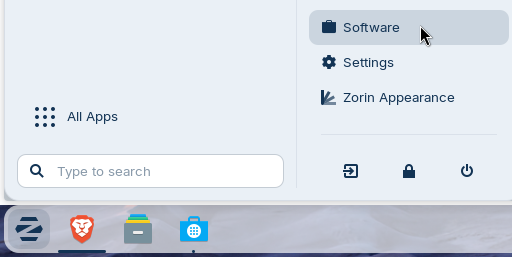
1. In the lower left corner click n the Z menu icon and open the software manager, ie icon called Software
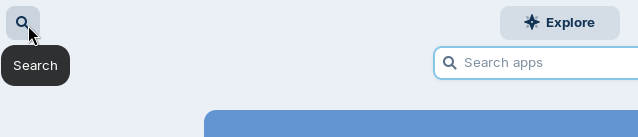
2. Click on the Magnify Glass icon in the top left to bring up a search box
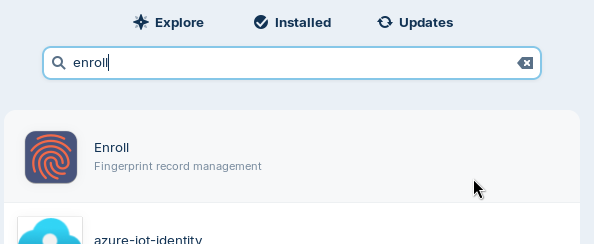
3. Type in enroll and click on the enroll application when it appears
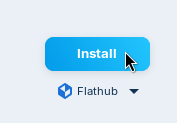
4. Click the Install button in the top right corner to install the app
5. When it is done installing click the Open button in the top right corner
6. When the Enroll app opens click the Register button
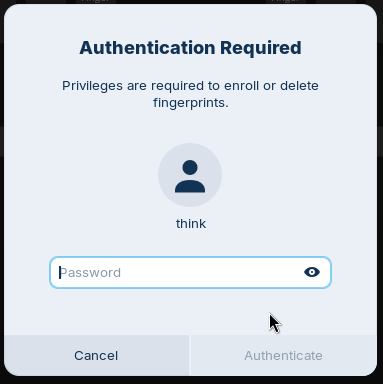
7. Enter your login password and click the Authenticate button
8. Place a finger on the fingerprint sensor, the sensor light will go from blue to red
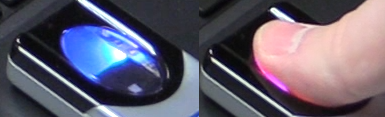
9. Repeat this step until you've finished the enrollment process
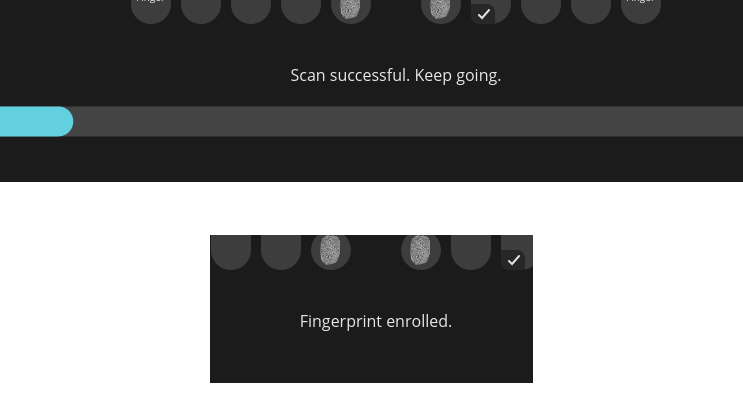
Note: For the most reliable results its best to get the fingerprint from different angles
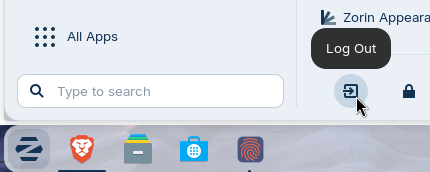
10. Once enrolled go to the Z menu icon in the lower left corner and click it, then click the Log Out button, click the Log Out button again to confirm you want to log out
11. Click on your user name at the login window, the sensor on the fingerprint reader will light up blue
12. Press your finger against the sensor to login