
If you're looking to download and burn an ISO image (like a a distribution, or the operating system installation medium) to a DVD or similar optical disc the following documentation is for you. While the tutorial is largely applicable to any distribution it is based on the Linux Mint 22 release from 2024 (tutorial from 2026). The first couple of steps may differ if your on a different distribution, release, or desktop environment. If you think this documentation needs an update, tweak, or you otherwise need further assistance please reach out to support.
Step 0: If you have not installed K3b yet now is a great time to do so. If your unsure how to do this follow our tutorial on installing K3b and then use the back button in your browser to return here.
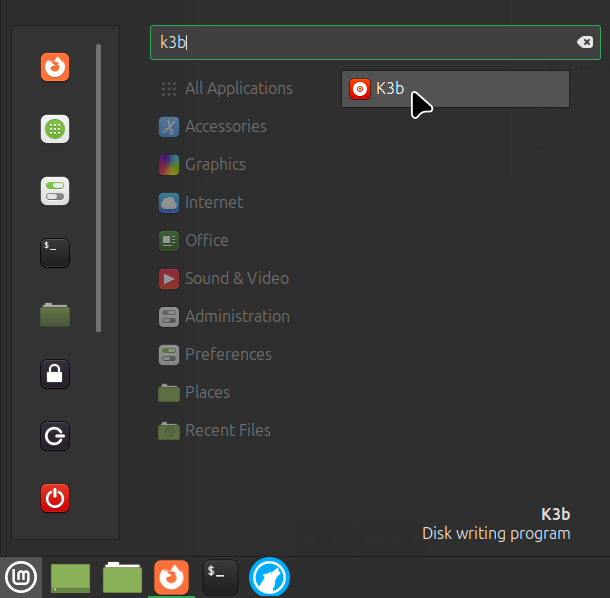
Step 1: In the lower or upper left hand corner you'll find an icon for your system menu. Click the menu icon and search for k3b or otherwise locate it through the menu by going to Sound & Video and clicking on the K3b icon like shown here:
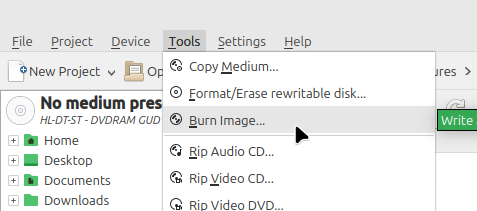
Step 2: Go to the file menu and click on the Tools drop down menu and select Burn image...:
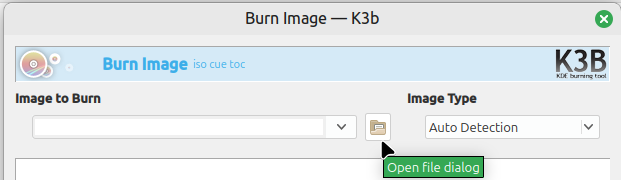
Step 3: Click on the file folder icon to open the file dialog box:
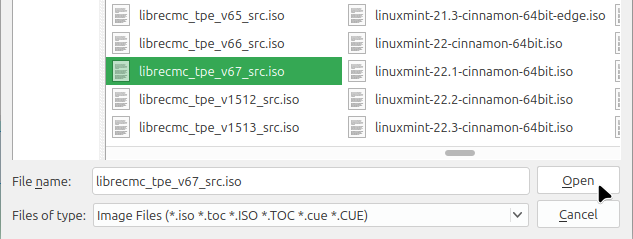
Step 4: Find the ISO image / installation media you downloaded (or otherwise go download it) and select the .iso file, then click the Open button:
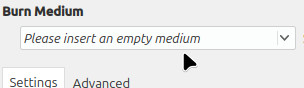
Step 5: Under Burn Medium you will notice that it says Please insert an empty medium, this indicates you have no disc in the optical or CD/DVD/Blu-ray writer/drive:
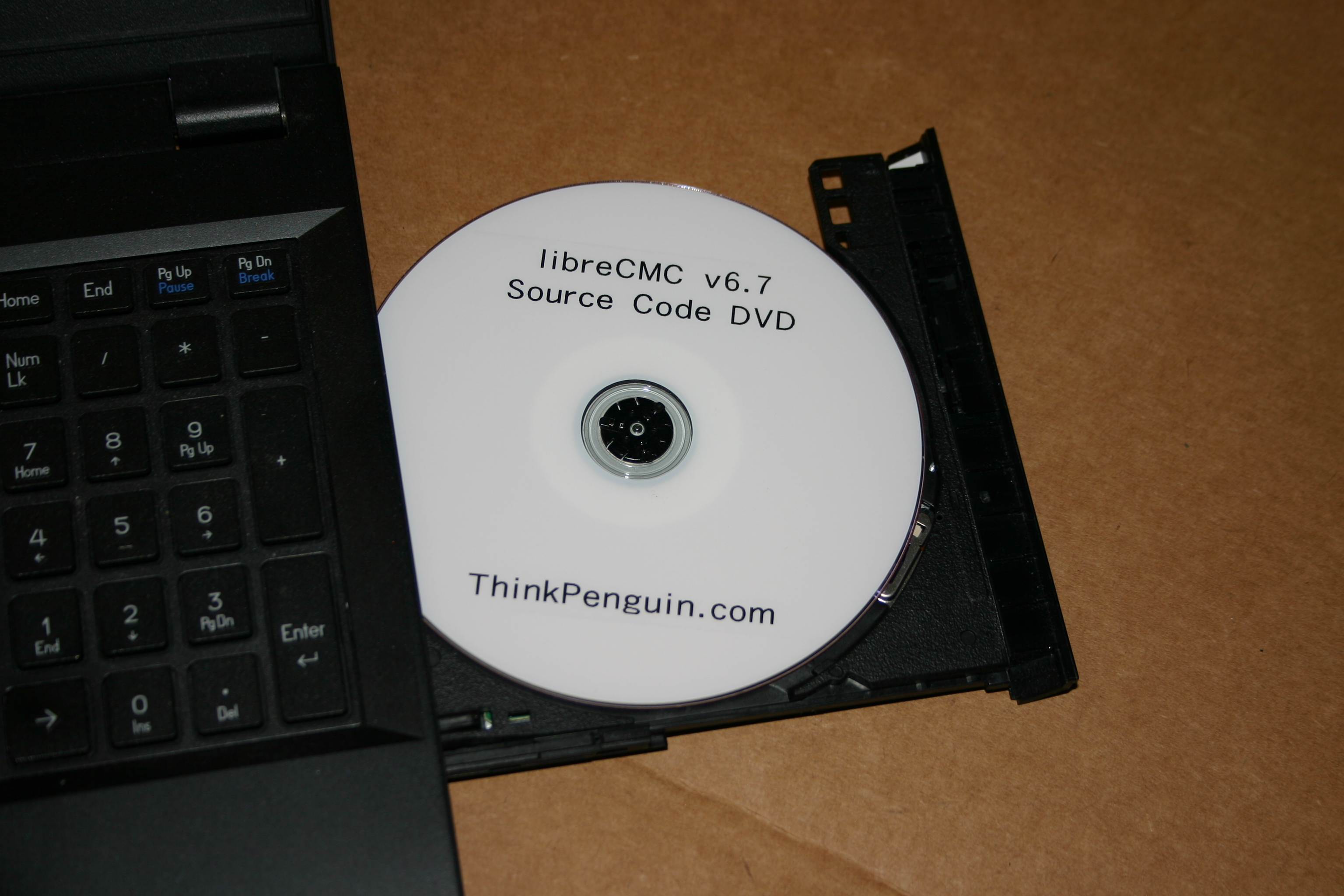
Step 6: Locate an empty DVD-R/BD-R/CD-R or similar disc of sufficient size for the ISO you have downloaded. Typically a DVD-R is of sufficient size, but some installation media exceeds 10GB. DVD-R discs are usually 4.7 GB or 8.5GB single sided. If you are burning an ISO like Alma Linux you may have a 11GB or larger ISO. In this case you'll need a BD-R (Blu-ray disc). BD-R discs start at around 25GB and reach capacities of up to about 100GB. Check out our storage section for optical discs.
Press the eject button on your optical drive and insert the disc:
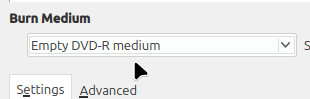
Step 7: Give the system a minute to recognize that the disc is in the drive. It'll show "Empty X medium" under Burn Medium once the system has picked up on the discL
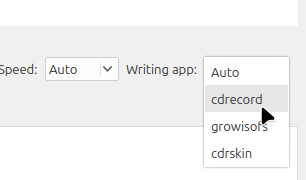
Step 8: Select the cdrecord writing app as shown below from the Writing app drop down menu (click where it says Auto):
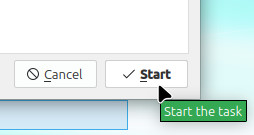
Step 9: Click on the Start button to begin the burn/write process:
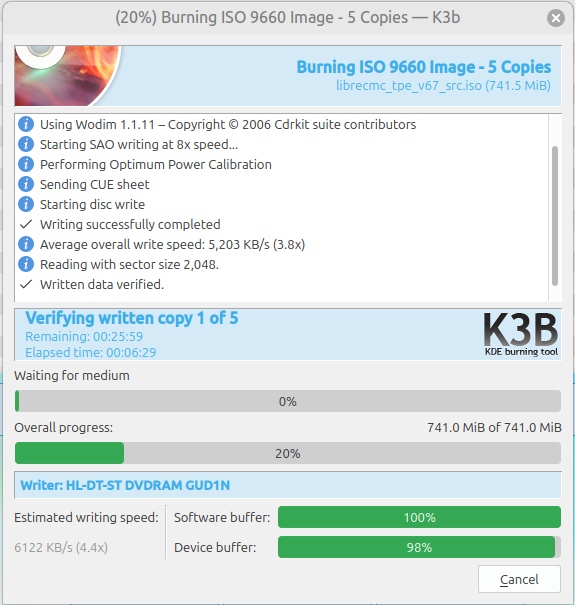
Step 10: As the writing occurring you'll see a progress bar slowly inching forward to completion. Actual time burning/writing a disc varies depending on the speed of the drive, disc, and capacity. A 100GB BD-R disc is likely going to take 45 minutes whereas writing a 3GB installation ISO to a DVD-R disc may only take 5-10 minutes.
If you run into an input/output error it may be you missed step 8 and failed to select cdrecord. The disc may be fine, but it's best to use cdrecord to avoid errors. If it's not that it may be you knocked the drive/system around a bit. Writing discs is very temperamental, so don't touch or do anything with the computer once you hit that start button.
Discs quality can also be an issue as well as compatibility. If you purchased a system or optical drive from us or even if not we'd suggest picking up discs from our catalog. The discs in our catalog that we stock are selectively chosen and have proven to be of solid quality.
Check out our storage section for optical discs.