If you're too young to remember having to 'rip' your music from audio CD this tutorial is for you! To top it off we're doing it in GNU/Linux using Linux Mint 22. The process has not changed in 20 years so whether your on Linux Mint 20, Linux Mint 30, or some other distribution like Trisquel you should be able to follow these steps to rip your first audio CD:
Step 0 part A: Follow our instructions on installing K3b
Step 0 part B: If you haven't got the audio decoder component installed open the system menu, click on the terminal icon, and run this command first:
sudo apt install libk3b-extracodecs
Step 1: Press the eject button on your optical drive and insert an audio CD:
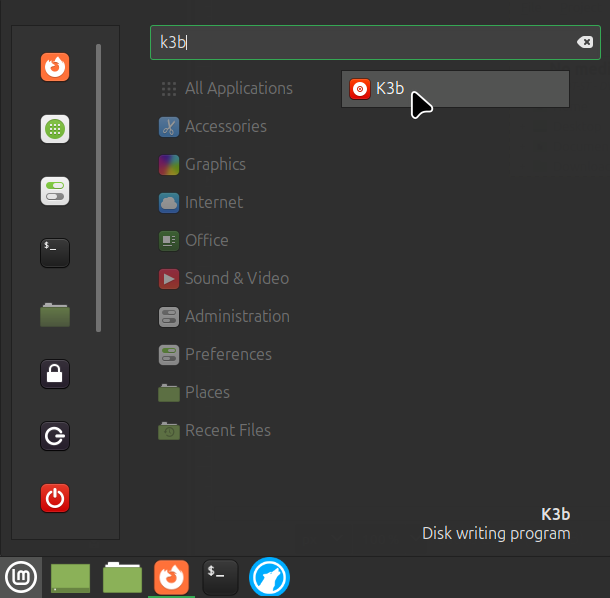
Step 2: Go to the system menu in the lower left or upper left corner and search for K3b or otherwise find and open it from the Sound & Video section:
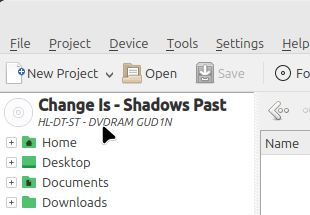
Step 3: Click on the CD icon in the top left corner:
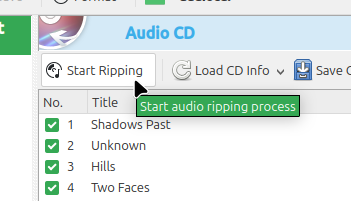
Step 4: Click on the Start Ripping button:
Step 5: From the File Type menu select whether you want to save your music in Mp3 or OGG Vorbis format. OGG Vorbis rocks- it's the non-patent encumbered music format for GNU/Linux and freedom oriented operating systems, devices, and users. While no longer an issue there is a long history of patents causing problems for those of us wanting to play music on our GNU/Linux systems. The patent has expired and so support for Mp3 can be included in modern GNU/Linux.
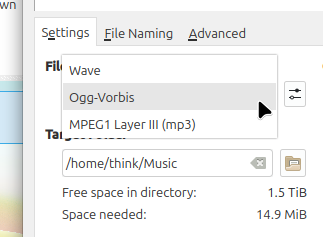
Step 6: Click on the file folder to open the dialog box that'll let you select the location you'd like to rip your audio CD to:
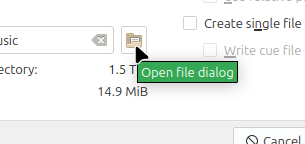
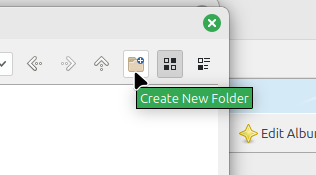
Step 7: Click the file folder icon in the open dialog box window to create a new folder for your ripped music:
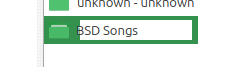
Step 8: Give your folder a name:
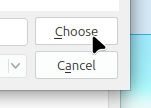
Step 9: Click the choose button to select the folder created as the destination location for your ripped audio:
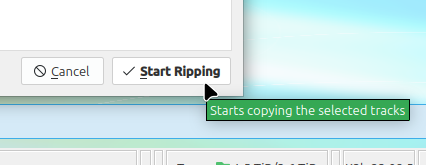
Step 10: Click the Start Ripping button:
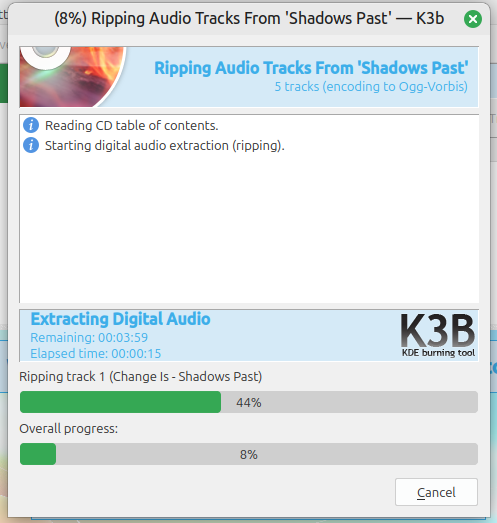
Step 11: Wait for ripping to complete:
Step 12: From the system menu in the top left or lower left corner open the file manager:
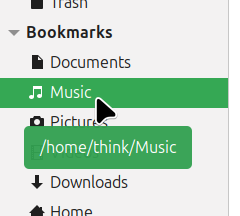
Step 13: Go to your music folder under bookmarks on the left hand side of the window:
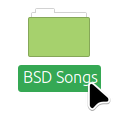
Step 14: Open the folder you created for your ripped music:
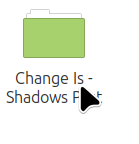
Step 15: Open the album folder you ripped, in our example it was called Change is - Shadows:
Step 16: Select a song to right click and open it with your favorite music app:
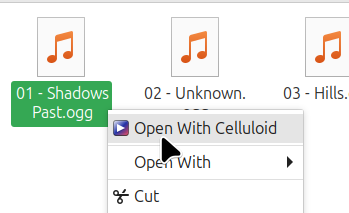
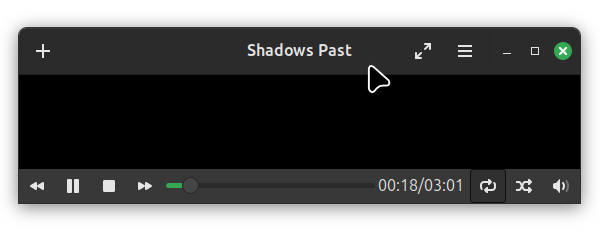
Your song should now be playing: